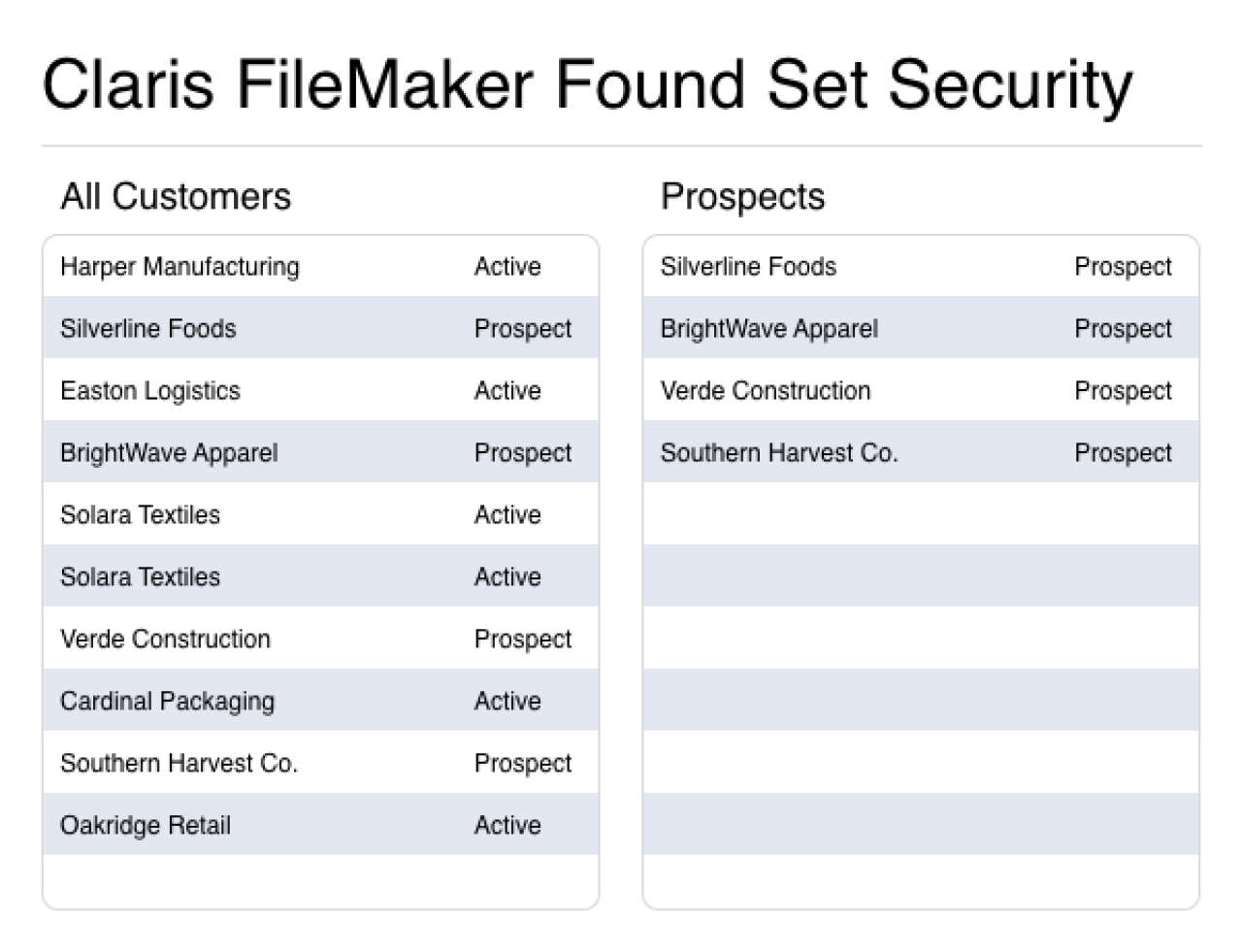
Controlling who can see what data is essential in any FileMaker app. While FileMaker’s built-in permission sets allow you to restrict access at the table and field level, the record-level security it provides can feel clunky to both users and developers. Pop-up windows and unintuitive calculations are common issues that disrupt the flow of using and developing your app. That’s where found set security comes in. By dynamically limiting which records a user can view based on criteria you define—such as user roles, account access, or data values—you can deliver a more secure, flexible, and user-friendly FileMaker experience. Let’s dive into how found set security works and how you can implement it effectively in your FileMaker solution.
What is Found Set Security?
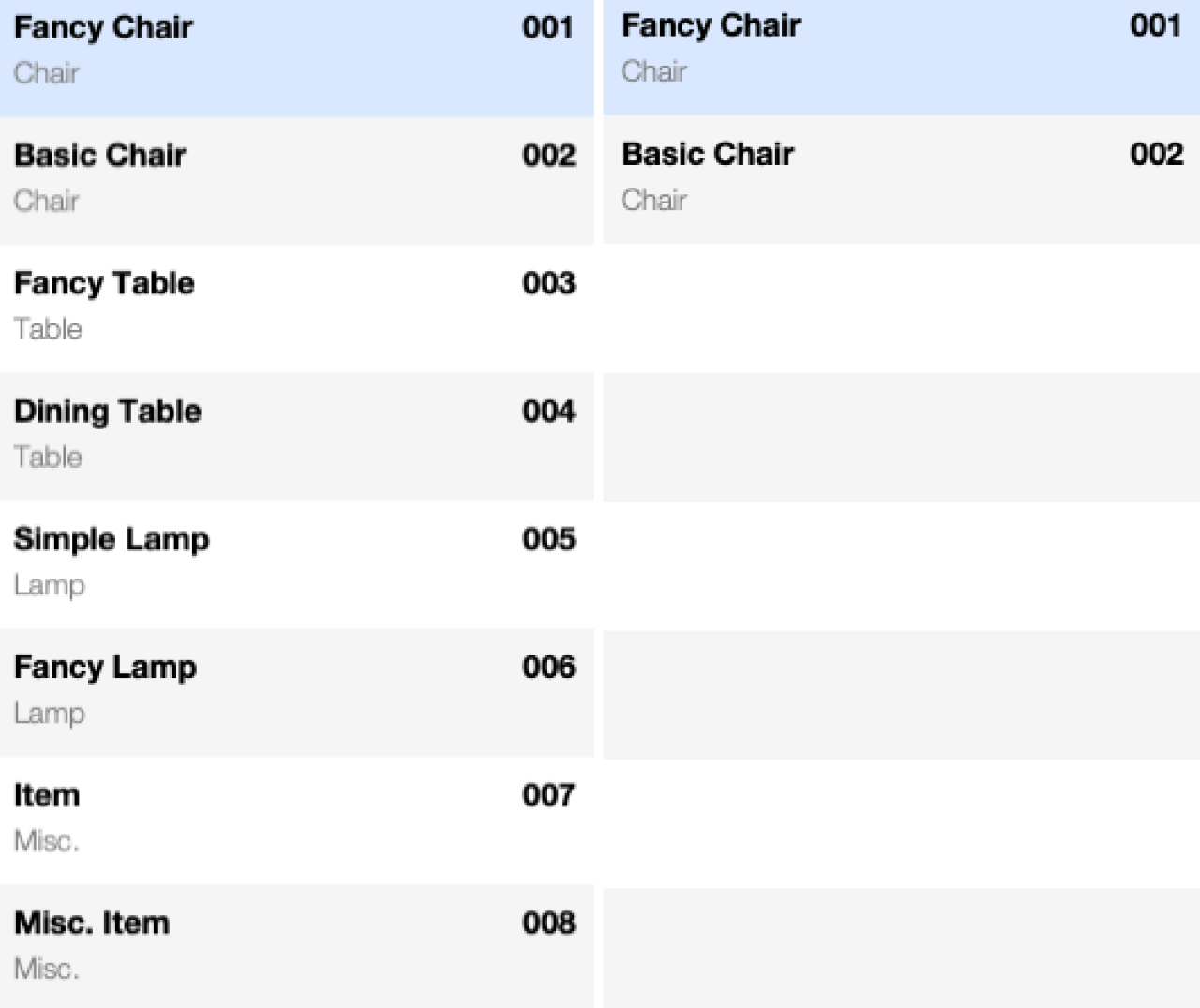
Found set security involves restricting what records a user can view and preventing them from accessing other records. For example, let’s have a table with records of furniture items. The types of furniture you can have in there are chairs, tables, lamps, and miscellaneous items. With found set security, you can configure it so that individual users can only access specific parts of the list of furniture items. For instance, a user with permission to view only chairs will only be able to access chairs when getting data from the furniture items table. Try as they might, they won’t be able to access all of the other types of furniture, even though records of those types might exist.
FileMaker’s built-in security measures can restrict access to whole tables, individual fields, and specific records. However, restricting access to specific records requires complex calculations and requires users to be tied to specific permission sets. To continue with the furniture example, FileMaker’s built-in security measures can in fact restrict access to certain types of furniture much like a found set security implementation. It will, however, be much less of a smooth experience—pop-up windows clutter UX and complex calculations needed to restrict record access slow down development.
Not to mention the fact that not all found set security is needed for security's sake. One other way found set security can be used is to view certain parts of a table when viewed in different places. Again with the furniture example, one might want a user to only be able to view chairs when viewing the furniture table from a specific layout and to only view lamps when viewing the furniture table from another layout. Handling this with FileMaker's built-in record access is unintuitive, as it requires changes to be made in the permissions menu rather than being something tied to the layout.
How is Found Set Security Implemented?
Found set security is implemented in two main parts: defining the criteria to constrain the found set, and the measures put in place to consistently constrain the found set by those criteria.
Defining Constraints
Defining what needs to be constrained can be done in various ways, depending on what you’re trying to accomplish with found set security. If you’re constraining what records a user can access, you would determine the constraints by checking which account the user logged into when accessing the file. If you want to view only certain records on a table from a specific layout, the layout itself could determine the criteria. Regardless of where you decide to place the constraints, that list of criteria needs to be able to be referenced by a significant number of scripts in various contexts.
In our sample file, viewing permissions are tied to records in a user table, allowing them to be easily edited in-app and accessed repeatedly from any context. In a proper app, this user record would be tied to the set of login credentials used to enter the app.
If you intend to have options for restricting access to entire tables as well, using found set security measures in tandem with FileMaker’s built-in security measures can enhance user experience and the overall flow of your app. When attempting to do something to a record that you don’t have permission to do, FileMaker displays a pop-up window that a user might find annoying or confusing. Using found set security, that situation can be avoided.
Enforcing Constraints
To enforce this permission set, places in your app where users can change the set of records they’re viewing need to be modified to constrain them to the allowed set, regardless of what the user enters. The main instances of this occur when a user enters find mode, when a user views a layout with the table, and when “Show All Records” or “Show Omitted Only” is invoked in scripts or via FileMaker’s menus.
Layout script triggers handle layout switching and finds:
“OnLayoutEnter” should be set to run a script that constrains the found set by the appropriate criteria.
“OnModeExit” (set only to fire when leaving find mode) is a bit trickier, as it fires before a find is executed rather than after, but some logic in the script can easily account for these difficulties.
Having the constraining script attached to “OnModeEnter” for entering browse mode can work, but will alter which record the user has selected when entering browse mode from other window modes. For both triggers, the attached script should enable the action to occur and then perform another find to constrain the found set further.
To replace the “Show All Records” and “Show Omitted Only” commands, scripts are created that replicate their functions while maintaining found set security. Then, review all places where these commands are used and replace them with the new scripts. A database design report is encouraged for this. You can use custom menus to replace the “Show All Records” and “Show Omitted Only” options in FileMaker’s menus with your scripts as well.
If using found set security to totally restrict record access it's recommended to implement it in tandem with FileMaker's native security. While found set security can be made airtight, it's best practice to make sure of it by also using the built-in record access permissions. While you still have to work with the calculations that make the permission set work for individual records, the UX benefits from a found set security implementations remain.
Conclusion
Found Set Security strengthens your FileMaker solution by adding flexible, record-level control that enhances both security and the user experience. By combining it with FileMaker’s built-in permissions, you can ensure users only access the data they’re authorized to see—without disruptive prompts or complex workarounds. If you’d like help implementing found set security in your FileMaker system, don't hesitate to contact DB Services, and we’ll be happy to assist you.
Did you know we are an authorized reseller for Claris FileMaker Licensing?
Contact us to discuss upgrading your FileMaker software.
Download the Found Set Security File
Please complete the form below to download your FREE FileMaker file.