In today's fast-moving digital workspace, efficiency and accuracy are key to staying ahead. Optical Character Recognition (OCR) has long been a go-to tool for converting text from images into usable data. Still, until now, it often required expensive third-party integrations, with reliable APIs costing up to $500 a month! Enter Claris FileMaker's GetLiveText features a built-in solution that uses native OCR capabilities on IOS and macOS to extract text directly into your database. Let's take a closer look at how GetLiveText can simplify data capture and enhance your FileMaker workflows.

Text Conversion
GetLiveText is a simple function. It takes two parameters (container and language code ) and returns a readable, editable string of text that the OCR has pulled from the container.

Two known limitations of this function are that it is not supported on Windows and the data in the container must be an image. FileMaker will return an empty string if executing on Windows and return "?" if trying to decode PDFs or other file types. The function is otherwise straightforward and fairly versatile.
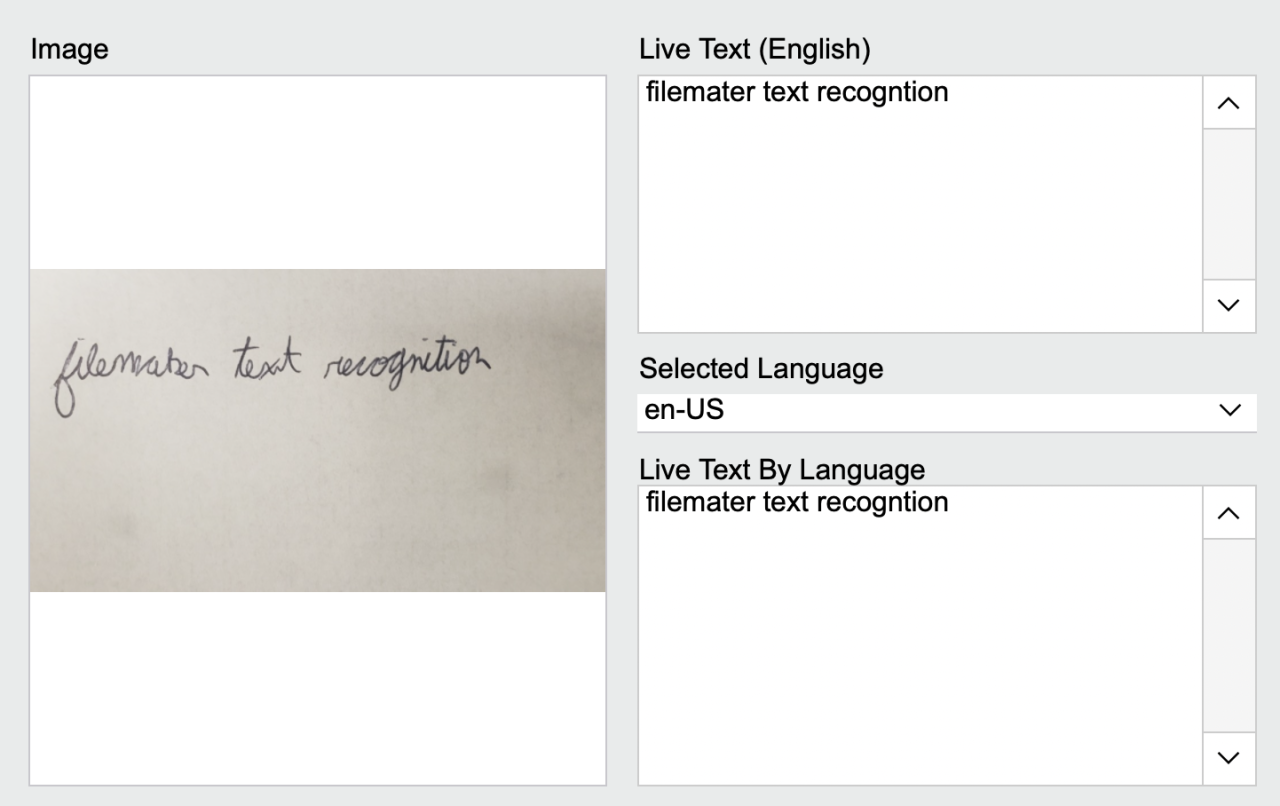
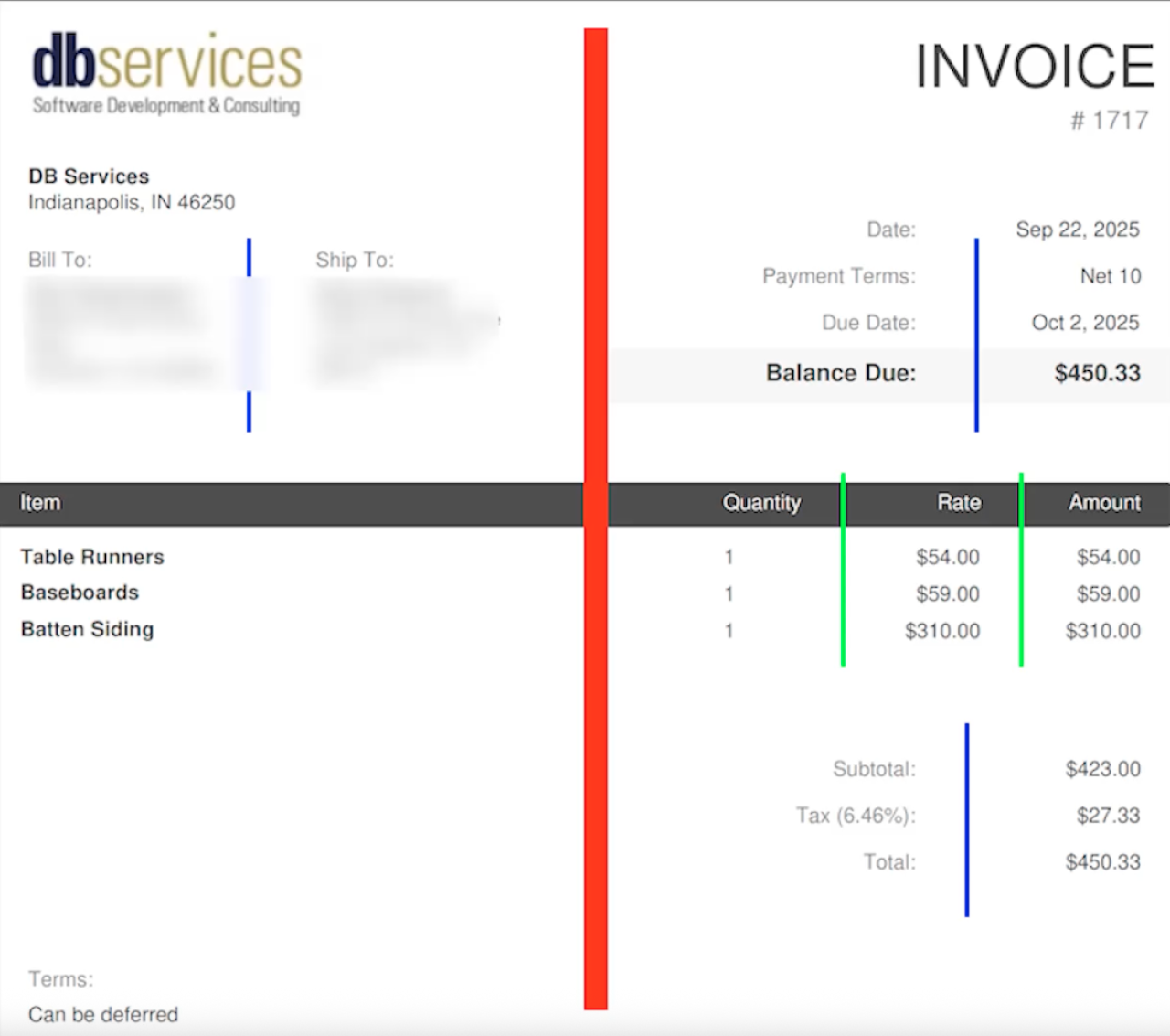
You can select from a few preloaded images in the downloadable demo file or upload your own to see how GetLiveText parses the data. Checking out our demo screenshots, we can see that the built-in OCR can pull numbers from invoices, parse text from a logo, and even recognize handwritten cursive. Please note that while GetLiveText can produce some excellent results, it does rely on image recognition, which will not be 100% accurate and even less consistent with handwriting.

By Default, the parse follows a "column" pattern. Text is evaluated top down, and then in sections from left to right. With an invoice like the one provided, the first text FileMaker will output will be "DB Services" from the logo in the top left corner, and the last will be the grand total of $450.33 in the bottom right corner.
Use Cases
Given a standard invoice format, you can configure FileMaker to pull companies, subtotals, etc. from an invoice without any extra data entry on your part. Another opportunity to boost workflow is to leverage some of FileMaker's new AI features. By doing this, you can target the field that holds the GetLiveText result and include it in semantic finds and natural language searches. In the provided example, we have a group of products with images of the nutrition facts. This data can be included in an AI search to quickly find products containing particular allergens or chemicals. Check out our article on Performing Semantic Finds for more on this.
Non-English Texts
Further boosting the reach of the GetLiveText function is its support of several ISO-639 language codes that can recognize up to 13 languages. When working with multiple languages, it is essential to note that the GetLiveText function is not a translation tool. As shown below, given an image with French text, GetLiveText will not produce a text translated into another selected language. Instead, you will receive what the text-recognition algorithm can identify from your image based on the language code it was passed.
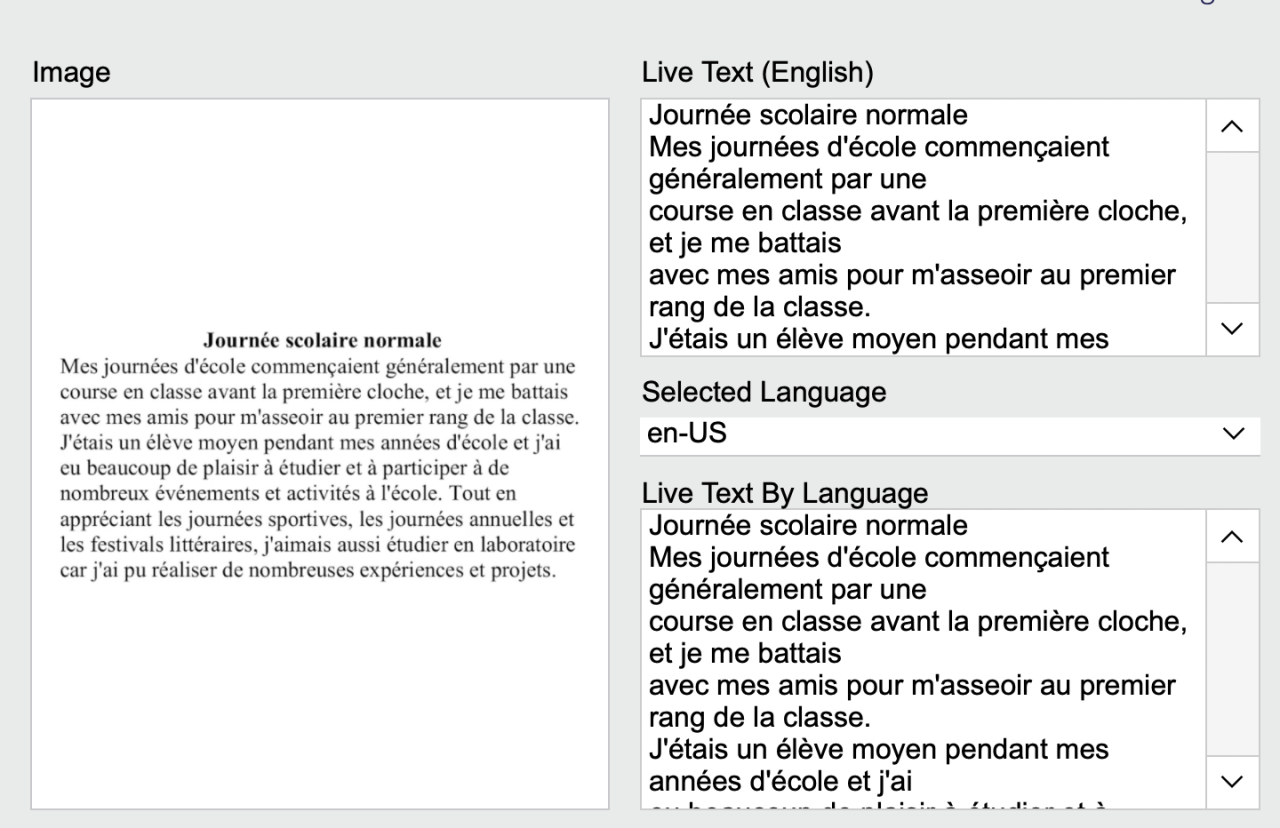
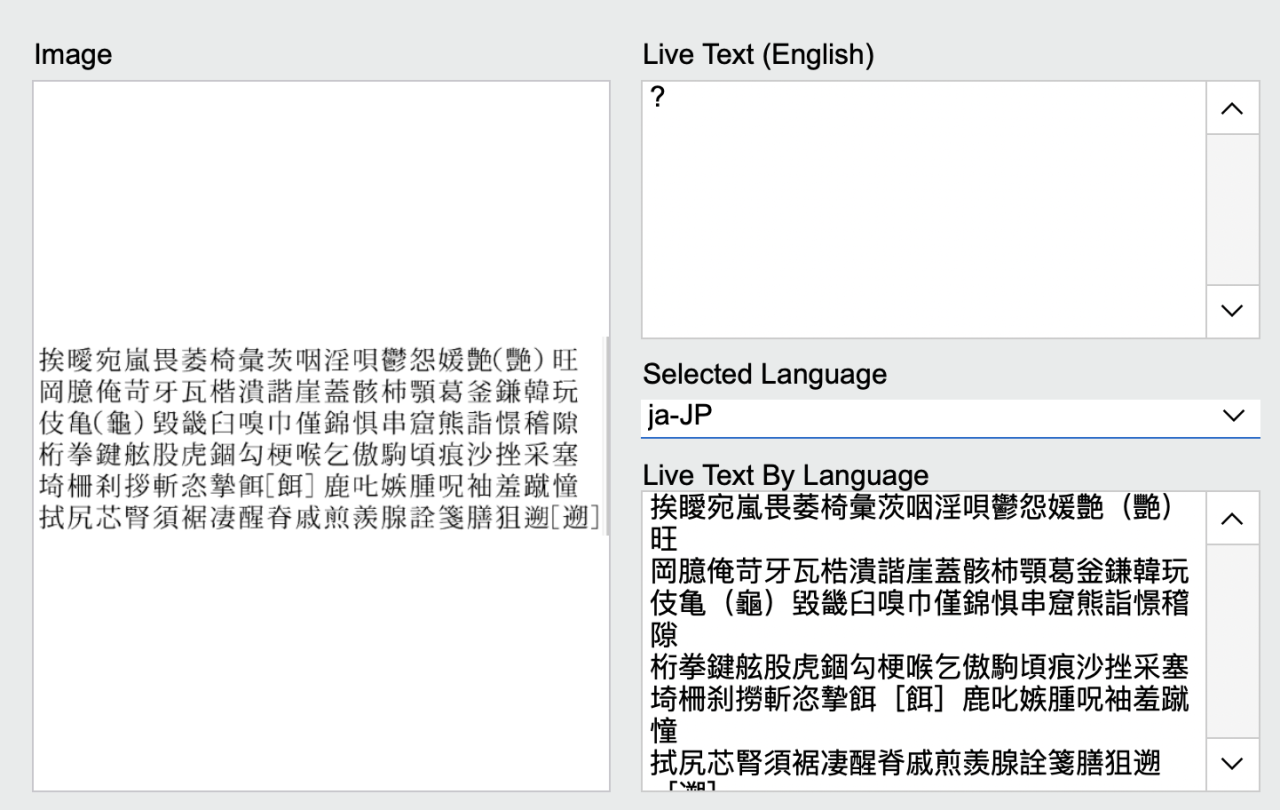
For this reason, you may notice that many languages with shared Latin or Germanic alphabets will produce almost identical results even if the correct language isn't selected. However, languages that utilize syllabaries and logograms, like the Kanji script (pictured below), cannot produce accurate results without passing the correct language parameter.
Non - Linear Texts
The final scenario we'll look at is where you have text not presented in some linear up/down or left/right format. In this example, we'll look at an image with text arranged along two wheels.
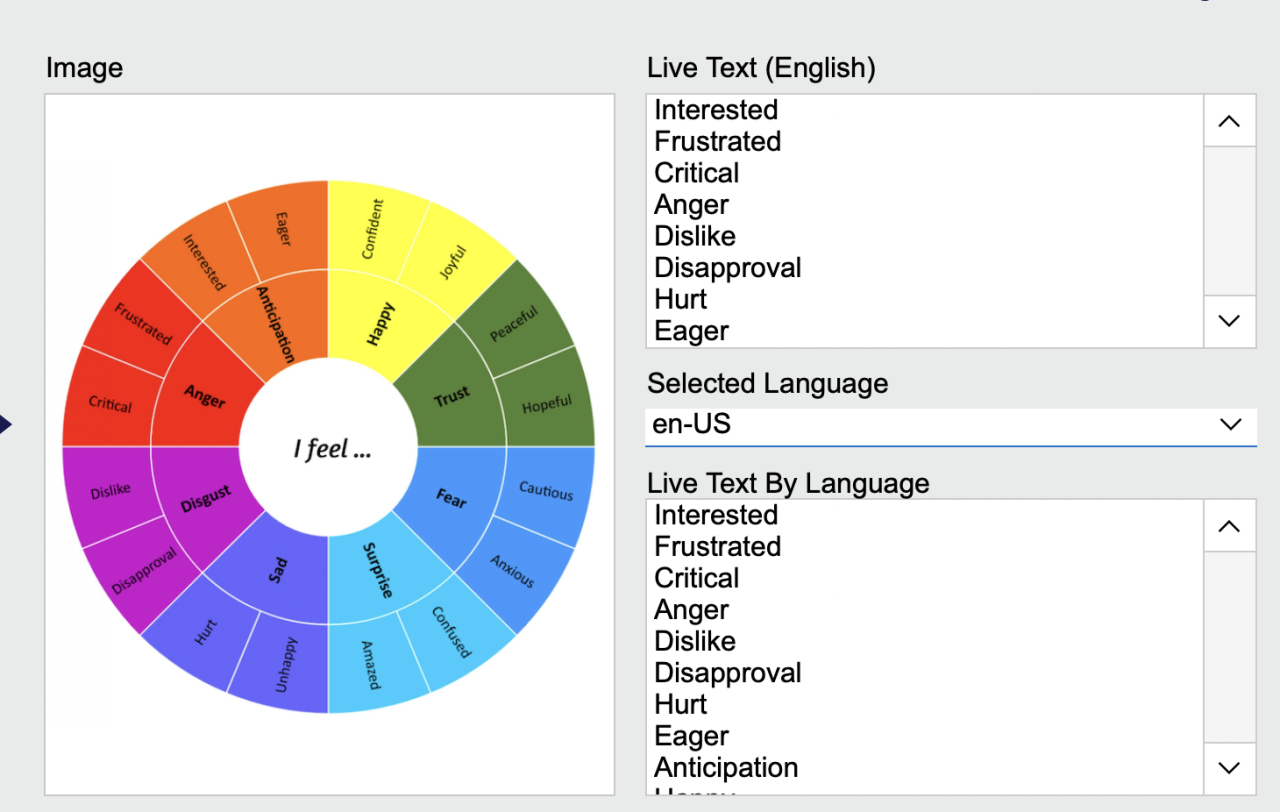
As we can see from the output, GetLiveText generally has no issue recognizing and parsing words. Rather, the challenge is that these situations arise from the order in which text is rendered. Here, we see GetLiveText tries to follow its standard "column" pattern, which can sometimes produce some unnatural ordering. To assist in this, we can take advantage of a sister function of GetLiveText called GetLiveTextAsJSON. This function takes the text from your image and returns a JSON containing the text and XY positions relative to the top left pixel of the image.
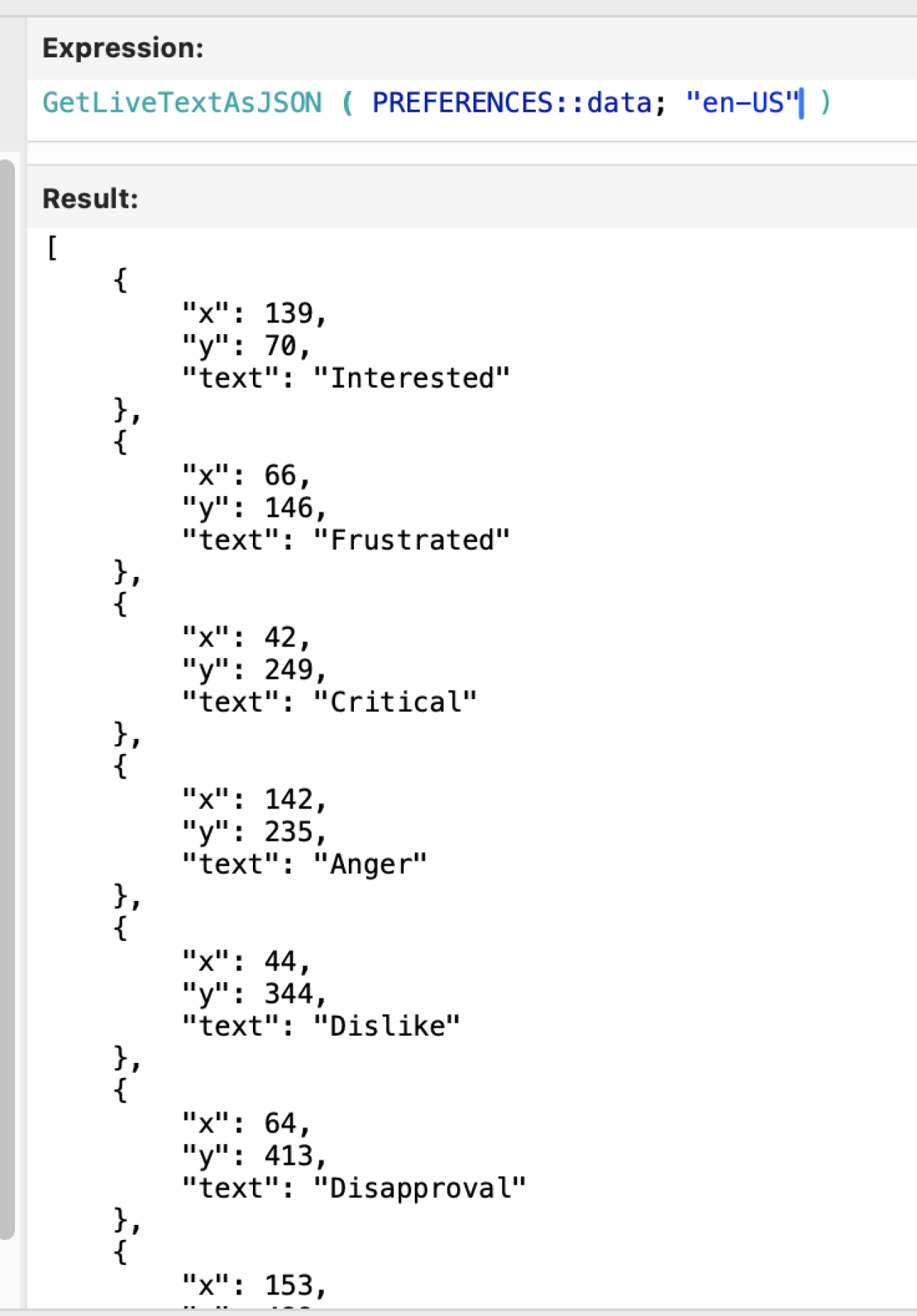
With this data, we can use custom functions and portal sorting to control which data points from the JSON are shown and in what order. For this demo, we have sorted the responses based on ascending x and y coordinates.
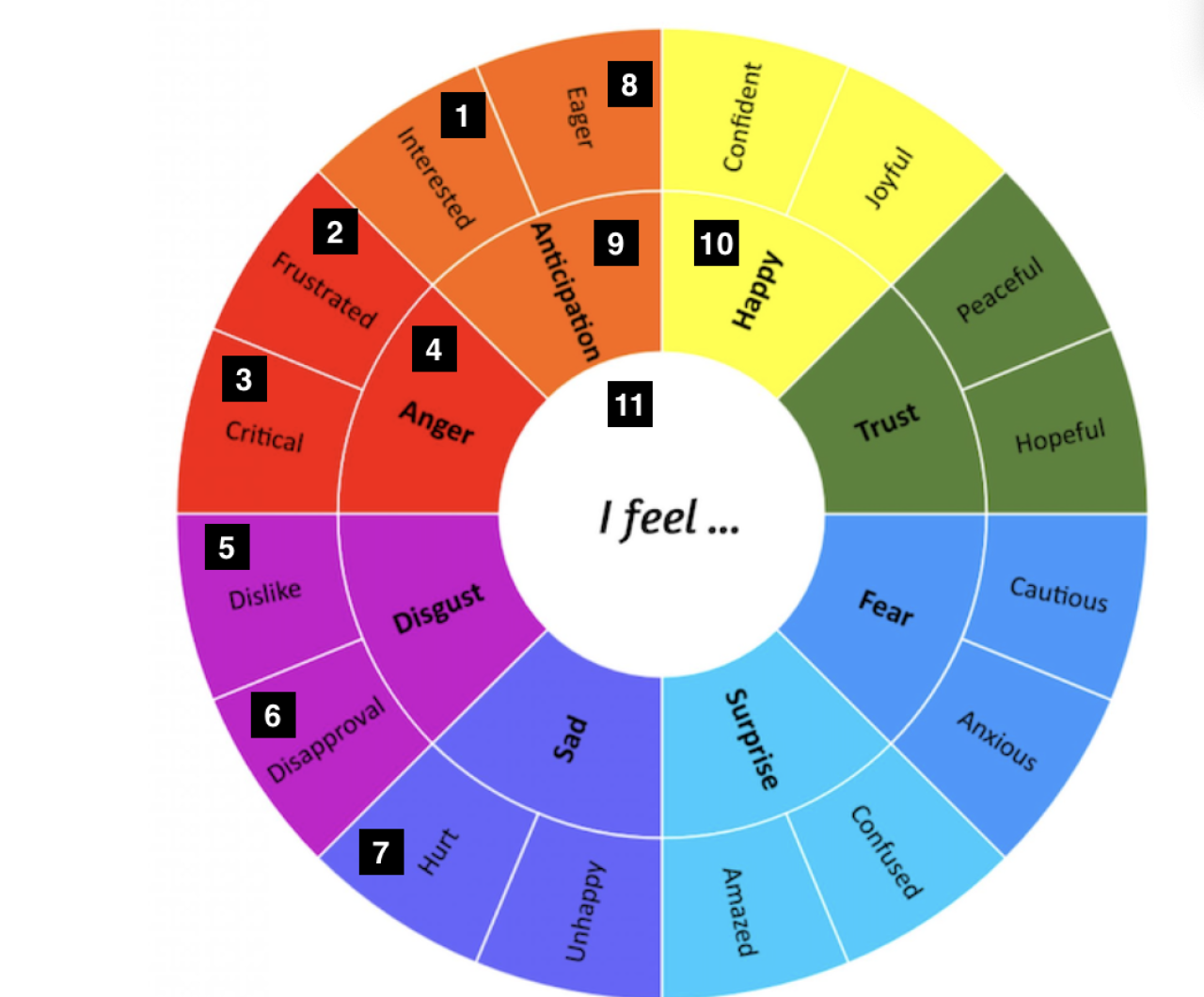
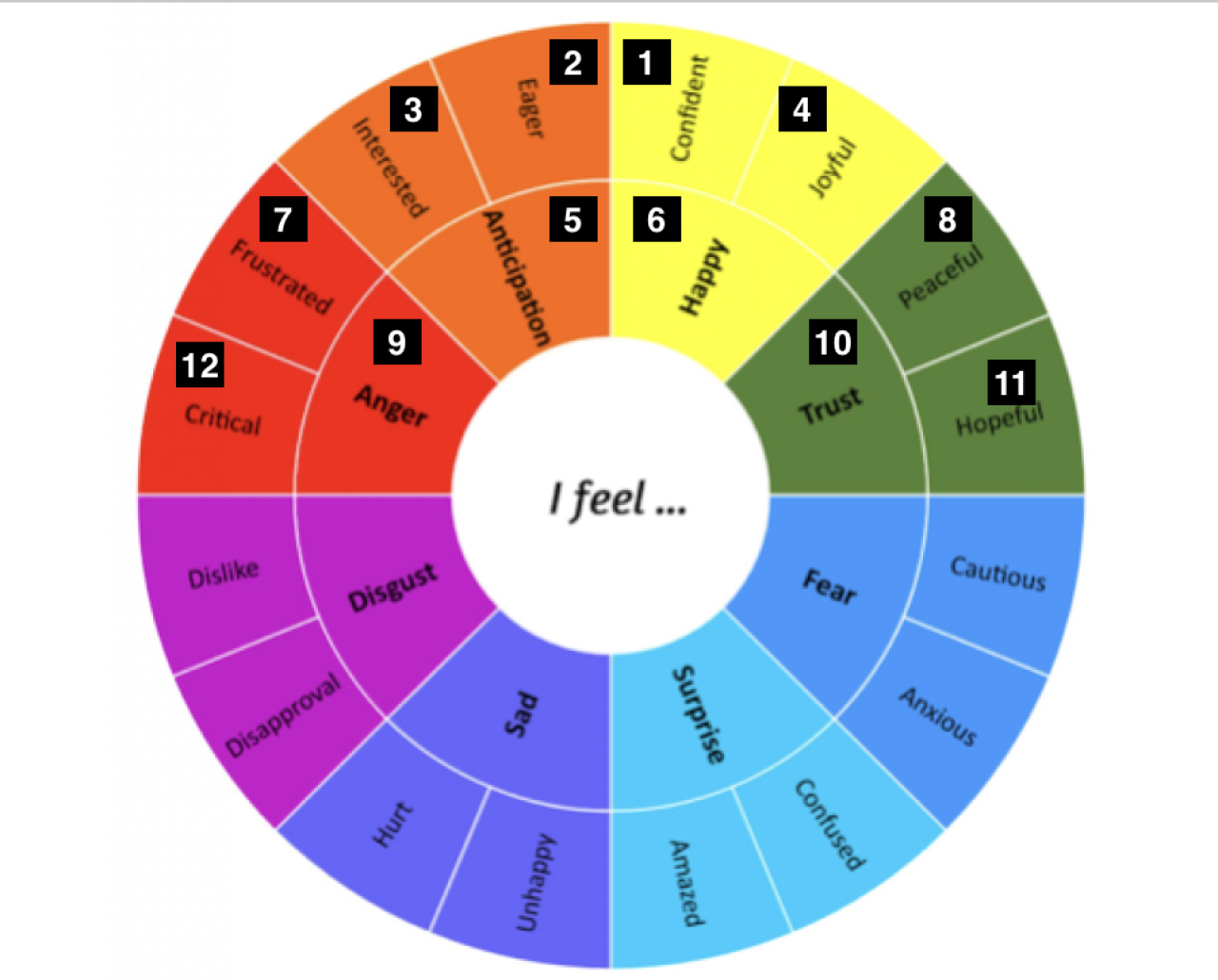
The image on the left shows the ordering of the first half of the text using GetLiveText's natural order. The image on the right shows the ordering if GetLiveTextAsJSON is implemented and sorted to render top to bottom. FileMaker includes support for two Right-to-Left scripts (Arabic[General] and Arabic[Syria]), which may require using JSON sorting to order your data correctly.
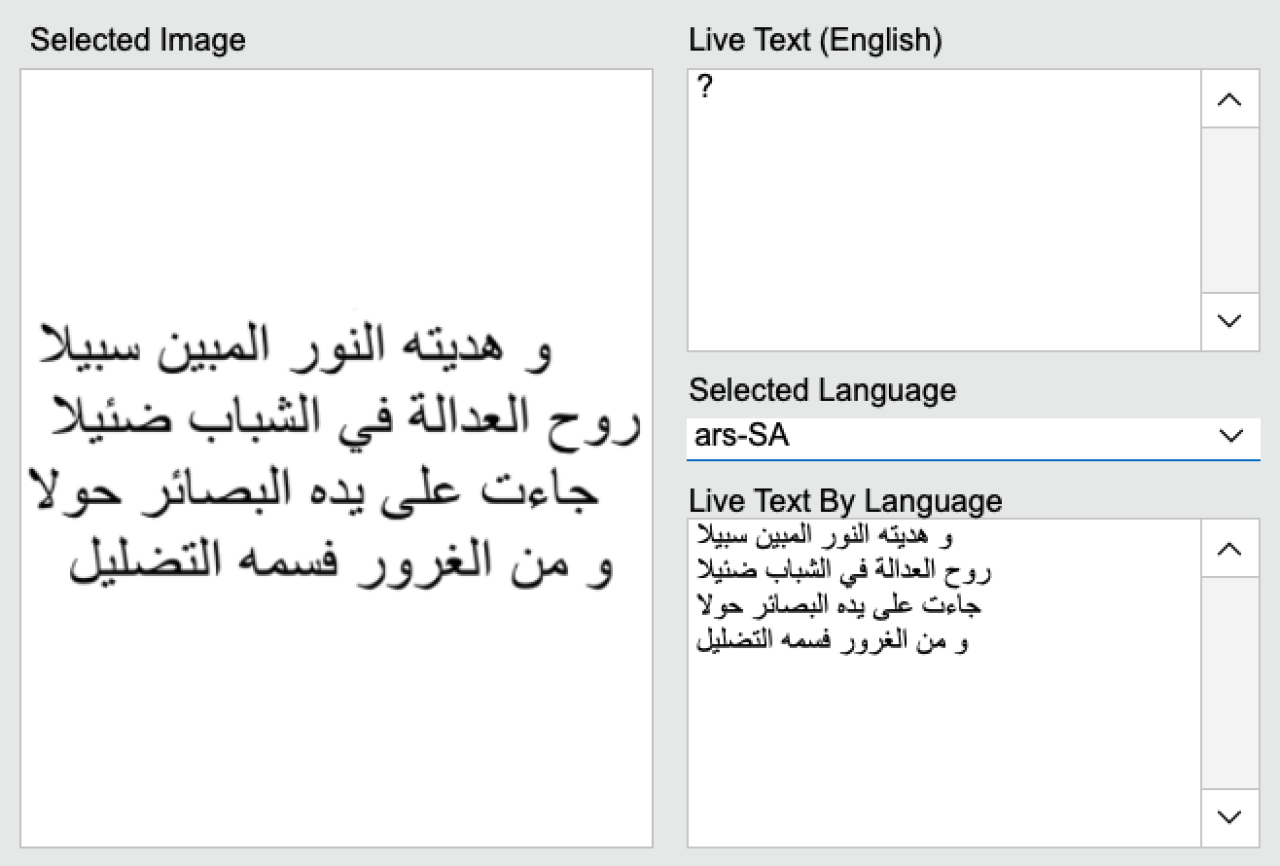
Even if you are not working with a Right-to-Left script such as Arabic or Hebrew, you may still find some use cases where having control over the output order is useful.
Conclusion
The GetLiveText function delivers a fast, free, and fully native way for FileMaker to extract text from image files. With support for multiple languages, it streamlines data entry, improves search accuracy, and reduces API expenses. If you're ready to harness the power of native OCR in your FileMaker solution, please contact us at DB Services, and we can help you get started!
Did you know we are an authorized reseller for Claris FileMaker Licensing?
Contact us to discuss upgrading your Claris FileMaker software.
Download the Claris FileMaker Container Text File
Please complete the form below to download your FREE FileMaker file.