Claris has introduced an exciting new capability to the Claris FileMaker platform: Claris MCP (Model Context Protocol). MCP is a standardized approach in the AI ecosystem that enables large language models (LLMs) to securely interact with your data in real—time, allowing for on-demand querying, analysis, and action. With Claris MCP, AI tools like Claude can access your FileMaker data at your request, search for specific records, create or update data, and even run FileMaker scripts. Best of all, this powerful integration requires zero custom code to implement. In this article, we’ll walk through the prerequisites, setup process, and integration steps to help you understand how Claris MCP works and the value it can bring to your FileMaker solutions!
Prerequisites
To implement Claris MCP, you will need to meet the following requirements:
Have an active Claris ID account.
Be a team manager in your Claris Studio team.
Use FileMaker Server 22.0.2.204 or newer.
Implementation
Claris Account Setup
As mentioned above, you will need a valid Claris ID to perform all these operations. You can create a Claris ID on Claris's portal.
You will also need to be a team manager on your Claris Studio team, as this gives you access to Claris MCP's configuration settings. To check your manager status, visit the Claris Studio website, log in to your Claris ID, navigate to the user screen, and verify that you are listed as a manager.

FileMaker Server
Claris MCP requires FileMaker Server 22.0.2.204 or newer. Additionally, you will need to enable OData and the Data API on the FileMaker Server admin console to get everything up and running.
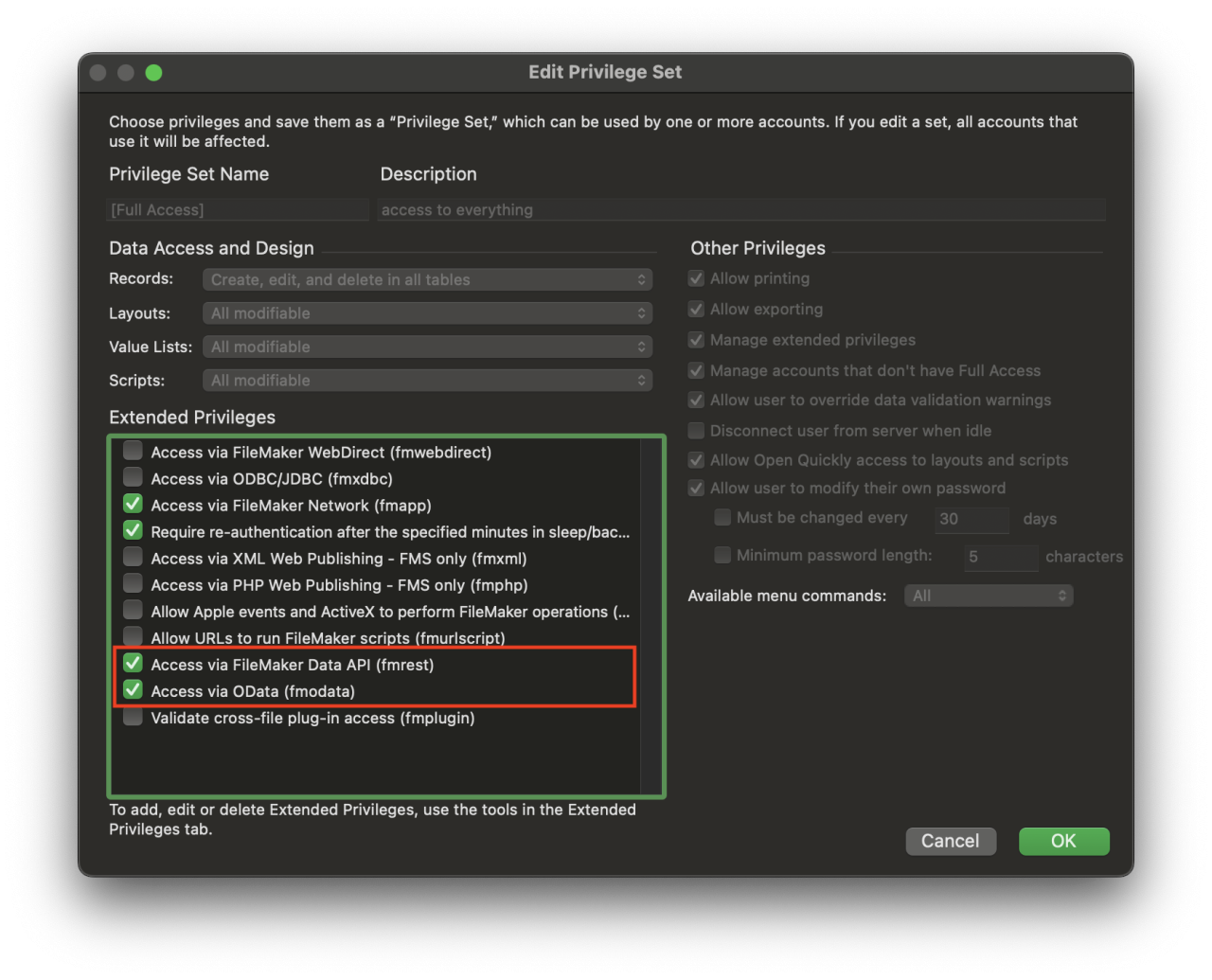
Naturally, the file you want LLMs to access must also be hosted on this server. Access will be granted via a FileMaker account, and we recommend using at least one dedicated account for this purpose rather than reusing a real user's account. The FileMaker user account must have the fmodata and fmrest extended privileges enabled.
Note: If this user account has strict settings that allow access only to specific tables or fields, the LLMs can read only those to which they have access.
Claris MCP Console
From here, we need to configure the settings on the Claris AI Workspace console. Hit the "Create New Context" button to initiate the process. Follow the prompts to enter your server's domain, as well as the username and password of the file you want to authenticate with. From there, select your file, the tables you wish to grant access to, and the scripts you want to grant access to, and that's it!
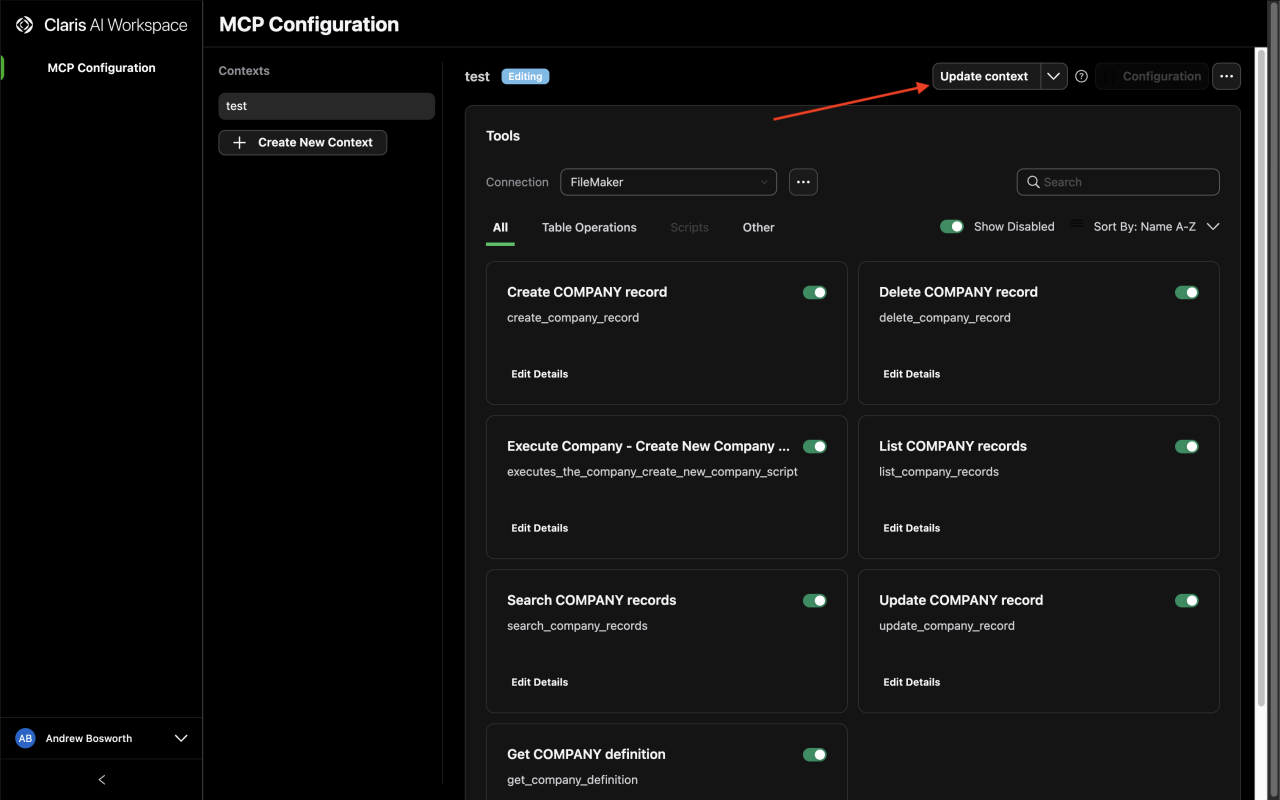
After some processing, the AI Workspace console should display various tools, including the ability to create, edit, or delete records in your specified tables, as well as the scripts you selected during setup. Before you make this ready for production, now would be a good time to toggle tools on and off (e.g., if you don't want your LLM to be able to delete records, you may want to toggle that tool off). Once you are satisfied with your settings, click the "Update Context" button to proceed to testing, followed by deployment. If you would like to learn more about the state of each context, please refer to Claris' documentation for further details.
Integration
For the sake of this example, we will use Claude; however, this approach should also work with AI Assistants and other LLMs that are MCP-compatible.
From the Claris AI Workspace console, click the "Configuration" or "Get Started" button. From there, you will be directed to a card window displaying JSON text (please do not share this information with anyone, as it is sensitive). For the implementation with Claude, toggle to the "Server File" tab, and copy the JSON labeled "Proxy Configuration (Command-based)".
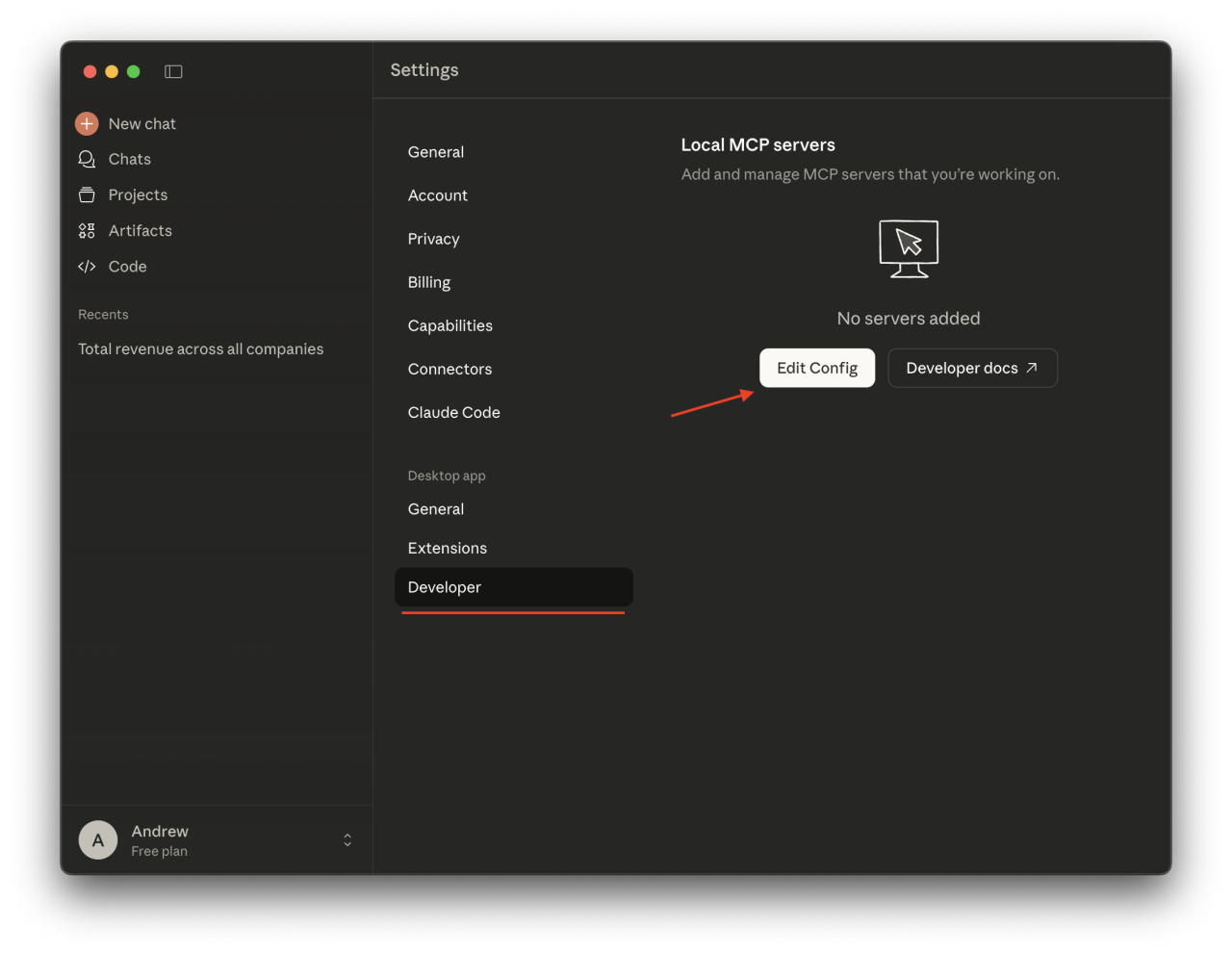
Inside Claude, navigate to your settings, select the "Developer" tab, and click the "Edit Config" button. This should direct you to a .json file, which you can open and paste your config settings into. Restart Claude, and you're done!
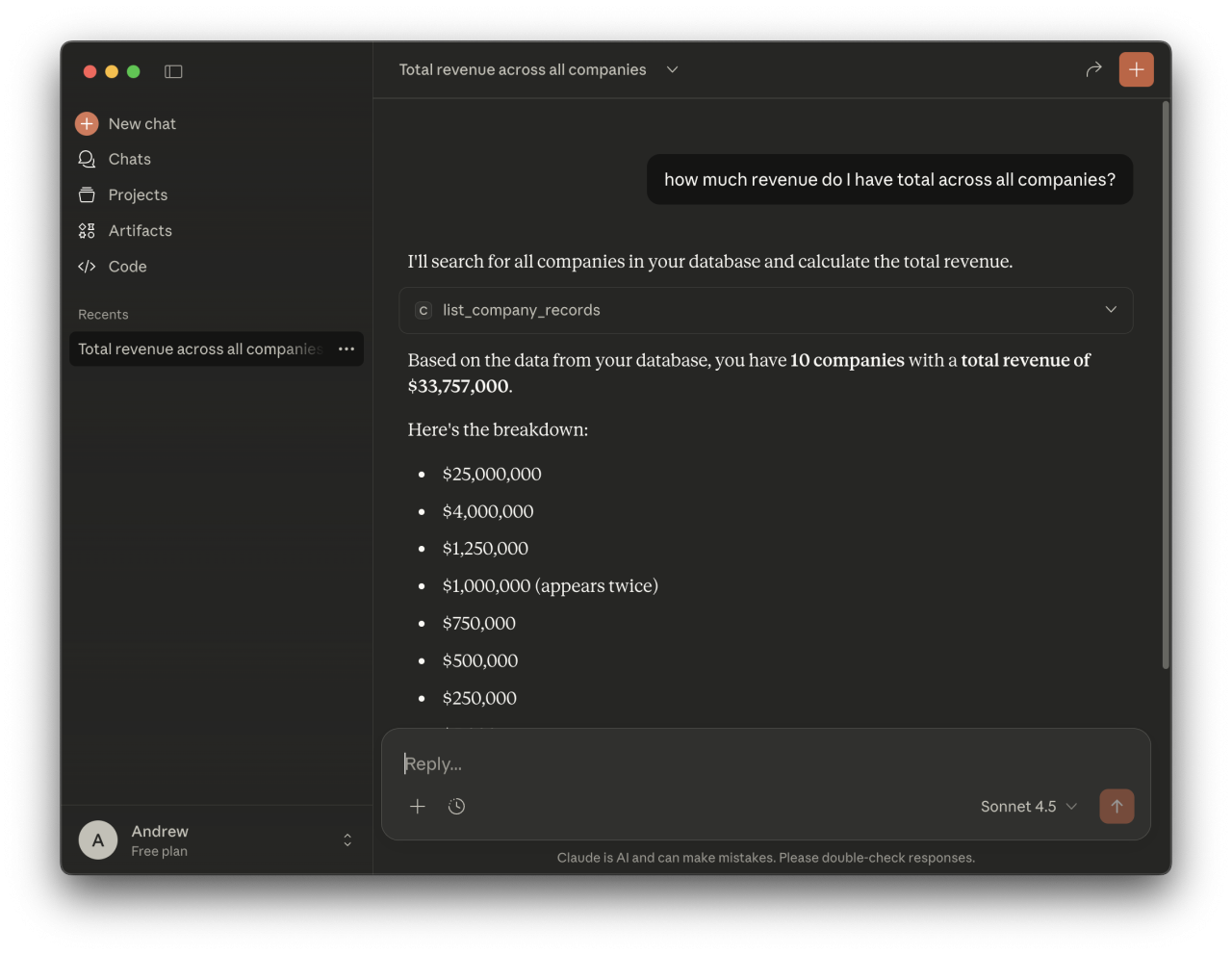
From there, if you prompt Claude for any FileMaker information, it should return results using your data!
Conclusion
Claris MCP is a powerful way to enable LLMs to interact directly with your FileMaker application, collecting data, updating records, and running scripts with ease. With its zero-code setup and configurable access controls, it’s easy to adopt while maintaining security and flexibility. If you would like to learn more about what Claris MCP has to offer or need assistance implementing it with your FileMaker solution, please don't hesitate to contact us at DB Services. We'd be happy to help!
Did you know we are an authorized reseller for Claris FileMaker Licensing?
Contact us to discuss upgrading your FileMaker software.
Download the Claris MCP for FileMaker File
Please complete the form below to download your FREE FileMaker file.