Data security is not optional, and for FileMaker Server administrators, SSL encryption is one of the most important steps you can take to protect data in transit. Starting with FileMaker Server 2025, Claris made that step significantly easier by building Let's Encrypt support directly into the admin console.
Let's Encrypt is a free, widely trusted certificate authority that provides the same level of encryption as a paid SSL certificate. This means no third-party tools, no manual imports, and no added cost. In this article, we walk through how to set up Let's Encrypt in FileMaker Server, configure automatic renewal, and what to keep in mind before getting started.
Compatibility
The Let's Encrypt feature is available on FileMaker Server 2025 and later, including the latest release. It is built into the admin console and does not require a third-party tool or manual certificate import. Note that the validation process uses port 80, so ensure that the port is open on your server before getting started.
Installation
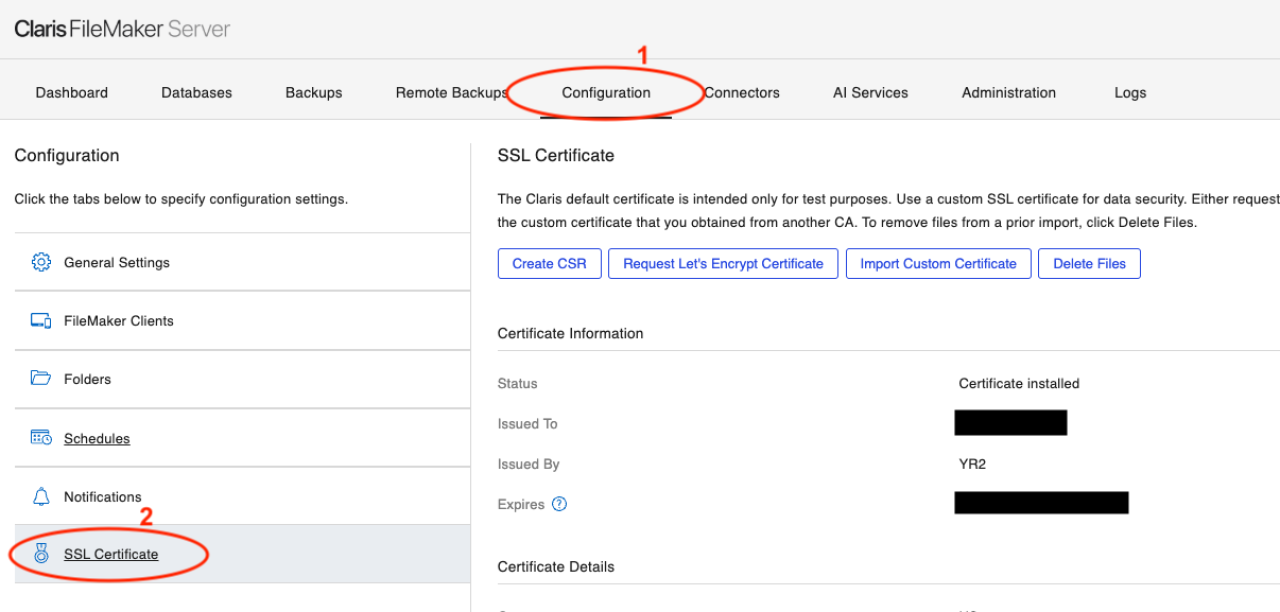
Existing users: open the admin console and navigate to Configuration > SSL Certificate
Click "Request Let's Encrypt Certificate"
Enter your domain (i.e., www.dbservices.com)
Note: I recommend toggling the "Automatically Renew Certificate" option and entering an email for the renewal notification.
Click "Test Validation", then "Request" (keep in mind that this process uses traffic over port 80).
Restart the server machine to apply the certificate change
Note: If validation fails, confirm port 80 is open and that your domain resolves to this server.
Renewal
When you enable the Automatically Renew Certificate toggle during setup, FileMaker Server adds a renewal schedule that runs every 60 days. We recommend changing this to a maximum of 30 days. If the certificate isn't eligible to renew when the schedule runs, it will exit the process early. That way, you can run the schedule very often without issues!
How to find the schedules:
Log in to the admin console
Configuration tab
Schedules
Create a new schedule or edit the existing Let's Encrypt Renewal schedule
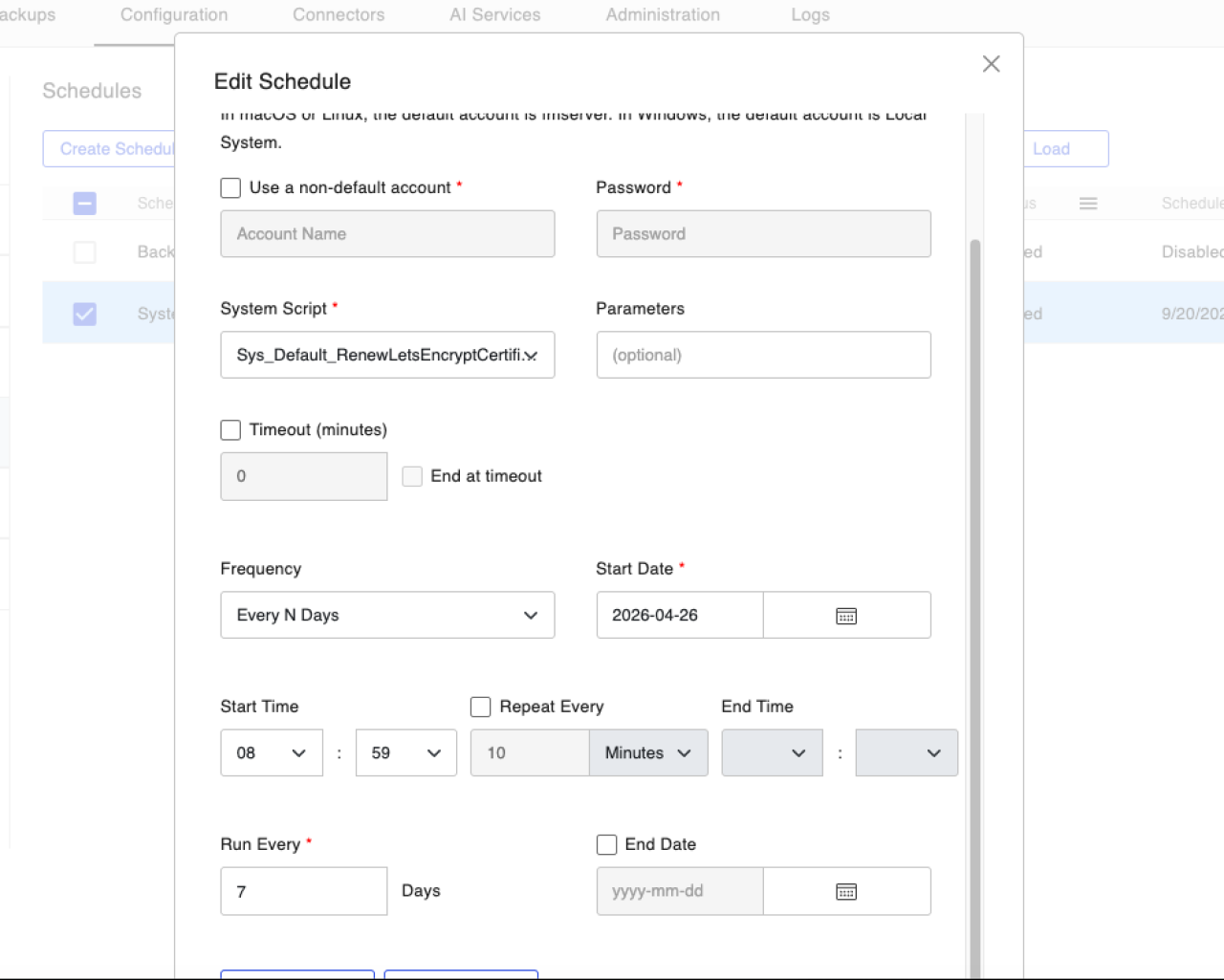
Since Let's Encrypt certificates have a 90-day lifespan, this cadence gives you a comfortable buffer before expiration.
One important detail to keep in mind: after each renewal, the FileMaker Server service must be restarted for the updated certificate to take effect. This is separate from the full server machine restart required during initial installation. If the service is not restarted after renewal, users will begin seeing certificate warnings even though the renewal itself completed successfully.
The notification email you provided during setup will be used when a renewal runs. Keep that address monitored so you can confirm restarts are happening on schedule and catch any renewal failures.
SSL and Security
SSL encrypts data in transit between FileMaker clients and the server, including connections to FileMaker Pro, the Data API, and the Admin API. Without SSL, that traffic is sent in plain text and can be intercepted on the network. Let's Encrypt provides the same level of encryption as a paid certificate, making it a practical choice for most FileMaker deployments. SSL is one layer of protection, and our FileMaker Safety Checklist covers additional settings worth reviewing alongside it.
Considerations
Port 80 must be open on the server for the validation to complete.
A server restart is required after the initial certificate is applied.
An FMS service restart is required after each renewal.
Let's Encrypt does not support wildcard certificates, so the certificate will only cover the exact domain entered during setup.
Conclusion
SSL encryption is a baseline expectation for any modern FileMaker deployment, and Let's Encrypt makes meeting that baseline easier than ever. With native admin console support starting in FileMaker Server 2025, there is no longer a cost or complexity barrier standing between your server and encrypted traffic.
If you are running FMS 2025+ and have not yet configured SSL, this is the most straightforward way to do it. Your data, your users, and your organization deserve that layer of protection.
Have questions about securing your FileMaker environment or need help with your server configuration? We are here to help. Reach out to the DB Services team and let's talk through your setup!
Did you know we are an authorized reseller for Claris FileMaker Licensing?
Contact us to discuss upgrading your Claris FileMaker software.