
Your sales team lives in HubSpot. Your operations team lives in FileMaker. And somewhere in between, someone is manually copying company records, contact info, and deal details from one system to the other — hoping nothing gets mistyped or missed along the way.
HubSpot is an online marketing and sales tool that helps convert leads and close customers. Companies that use both HubSpot and FileMaker often end up doing double data entry, which creates more work and discrepancies between the systems. Luckily, you can automate this by integrating your FileMaker solution with your HubSpot app!
Here's how to set up that integration, from creating your HubSpot app to sending your first request from FileMaker.
Before You Start
Before you start using HubSpot's API, consider pricing. While the free version of HubSpot works fine on a small scale, the daily limit and the rate at which you can call the API vary depending on your HubSpot product tier, the type of call, and certain HubSpot app settings. Exceeding the limit will return a special 429 error response, so it's worth reviewing HubSpot's API usage guidelines before you build anything that relies on frequent calls.
Creating a HubSpot App
If you don’t already have a HubSpot account or app, create an account, then create and install a static auth app with a developer account.
Edit the “app-hsmeta.json” file to have the required scopes for the parts of the CRM you are interacting with in the “requiredScopes” section. For example, if accessing and editing companies, you would want the “crm.objects.companies.read” and “crm.objects.companies.write” scopes. Required scopes for API calls are listed in the documentation.
Once you’re done editing the scopes, rebuild and reinstall your app.
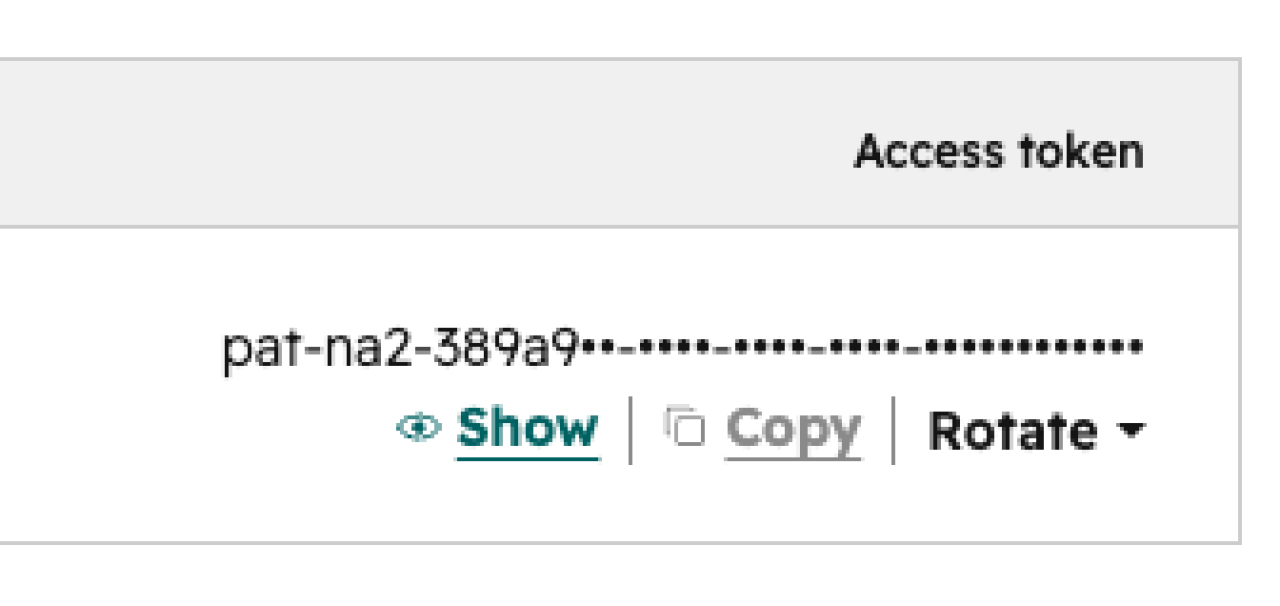
Next, locate the access token. Go to the development tab in HubSpot, then to your app. Click the “distribution” tab and find the access token card.
Click the show button and copy the token. You’ll need this token to integrate your HubSpot app with your FileMaker solution.
Making Requests and Parsing the Response in FileMaker
Outside of your token, HubSpot API requests also require whatever information you’d like to push to or pull from HubSpot. For example, the Create Company request is a POST request that requires the company's properties (name, city, phone number, etc.) as part of a JSON object in the cURL request.
--request POST
--data '{"properties":{"annualrevenue":"1000000","city":"Indianapolis","domain":"https://dbservices.com","industry":"COMPUTER_SOFTWARE","lifecyclestage":"other","name":"DB Services","numberofemployees":"50","phone":"(317) 288-4244","state":"Indiana","timezone":"Eastern","zip":"46250"}}'
--header "authorization: Bearer pat-na2-XXXXXXXX-XXXX-XXXX-XXXX-XXXXXXXXXXXX"
--header "content-type: application/json"
--dump-header $responseHeaders
Once a successful request has been made, a JSON-encoded response is returned. FileMaker’s native JSON functions make sending and receiving data a breeze.
{
	"archived" : false,
	"createdAt" : "2026-06-01T17:28:55.405Z",
	"id" : "325332326118",
	"properties" :
	{
		"annualrevenue" : "1000000",
		"city" : "Indianapolis",
		"createdate" : "2026-06-01T17:28:55.405Z",
		"domain" : "https://dbservices.com",
		"hs_annual_revenue_currency_code" : "USD",
		"hs_calculated_phone_number" : "+13172884244",
		"hs_lastmodifieddate" : "2026-06-01T17:28:55.405Z",
		"hs_num_blockers" : "0",
		"hs_num_child_companies" : "0",
		"hs_num_contacts_with_buying_roles" : "0",
		"hs_num_decision_makers" : "0",
		"hs_num_open_deals" : "0",
		"hs_object_id" : "325332326118",
		"hs_object_source" : "INTEGRATION",
		"hs_object_source_id" : "39949863",
		"hs_object_source_label" : "INTEGRATION",
		"hs_pipeline" : "companies-lifecycle-pipeline",
		"hs_searchable_calculated_international_phone_number" : "13172884244",
		"hs_searchable_calculated_phone_number" : "3172884244",
		"hs_task_label" : "DB Services",
		"hs_v2_date_entered_current_stage" : "2026-06-01T17:28:55.405Z",
		"hs_v2_time_in_current_stage" : "2026-06-01T17:28:55.405Z",
		"industry" : "COMPUTER_SOFTWARE",
		"lifecyclestage" : "other",
		"name" : "DB Services",
		"num_associated_contacts" : "0",
		"num_notes" : "0",
		"numberofemployees" : "50",
		"phone" : "(317) 288-4244",
		"state" : "Indiana",
		"timezone" : "Eastern",
		"website" : "https://dbservices.com",
		"zip" : "46250"
	},
	"updatedAt" : "2026-06-01T17:28:55.405Z",
	"url" : "https://app-na2.hubspot.com/contacts/245752724/record/0-2/325332326118"
}
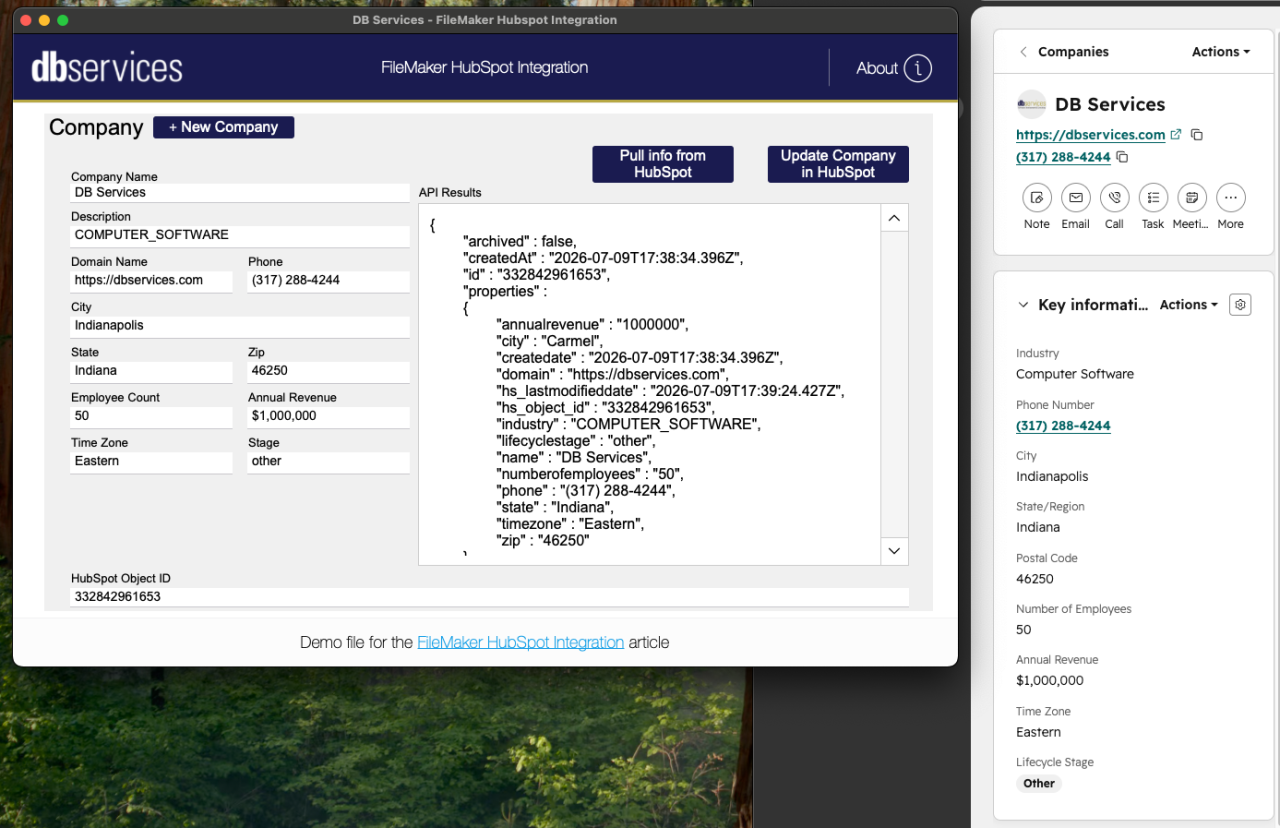
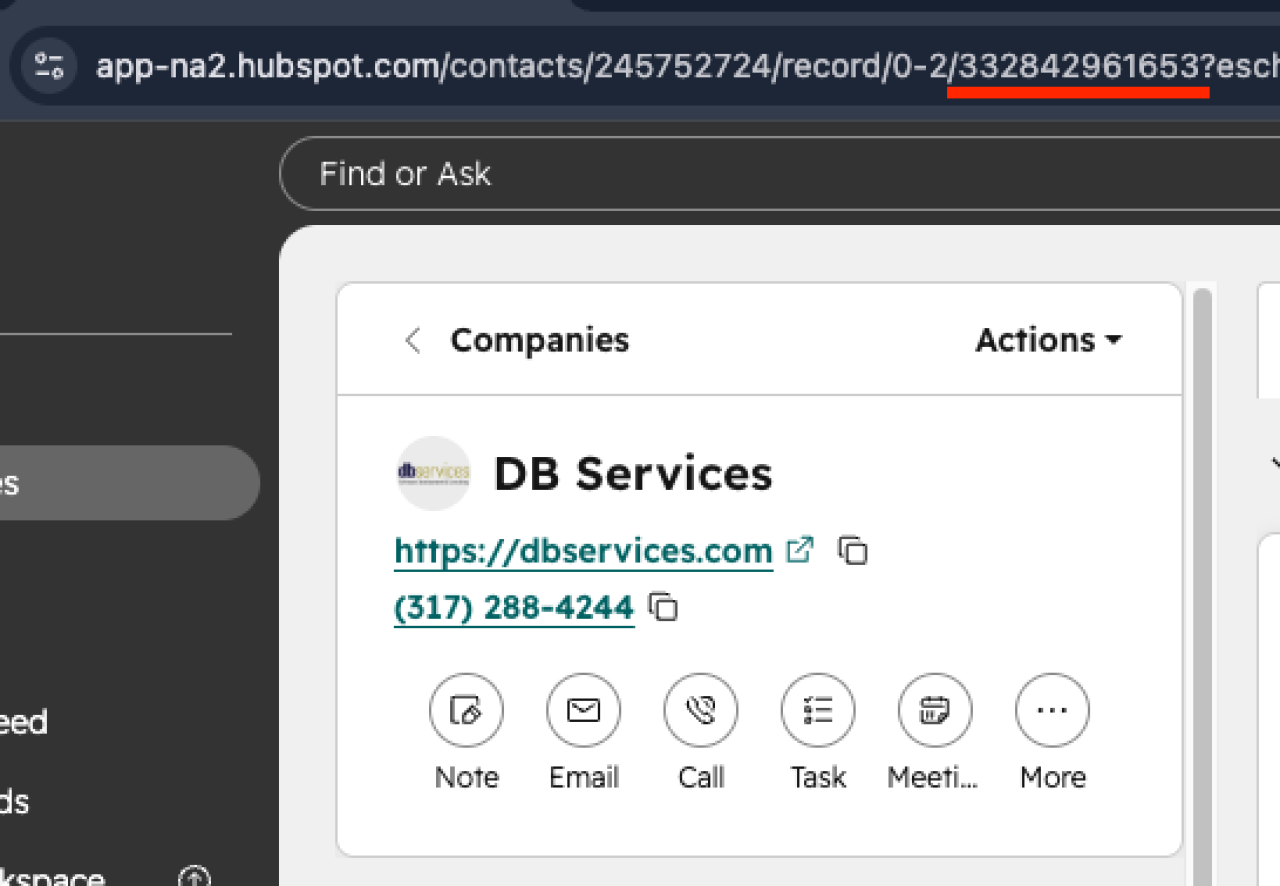
For further interaction with that company you just created, such as reading or updating, you’ll need to pull the “id” value from the JSON. If you wish to read, update, or delete an existing object in HubSpot, you can find the ID by either going into the actions menu in HubSpot and clicking “View all properties” or by grabbing it directly from the URL after the “/0-2/.”
Conclusion
Once FileMaker and HubSpot are communicating, the manual busywork disappears. Records created, updated, or deleted in one system reflect automatically in the other, so your team can trust the data no matter which platform they're working from.
This is just one example of how the right integration turns two separate tools into one connected system. Explore our integration options to see what that could look like for your business, or contact the DB Services team to talk through what's possible for yours!
Are you stuck and need help with your integration? Contact us for support!
Download the FileMaker HubSpot Integration File
Please complete the form below to download your FREE FileMaker file.