
What if every email about a client showed up right on that client’s record? Every reply, every attachment, and the full conversation history, all sitting where your team already works.
With Microsoft Graph and FileMaker, that’s within reach. Graph lets your FileMaker solution pull in a user’s mail, send, reply, and forward on their behalf, flag high-priority messages, and automate routine sends. You can even build a fully customized email client inside your solution.
This article walks through the three core pieces of any Graph email integration: authenticating a Microsoft user, retrieving emails, and sending emails, all from FileMaker.
Before You Start
You will need a Microsoft 365 subscription with Exchange Online, and a licensed mailbox for every user who will connect. Graph mail requests will not work without one. You also need Admin access to Microsoft Entra, or an administrator who can register an app and grant consent.
Register an App in Microsoft Entra
Confirm you have a Microsoft Entra tenant. Most work and school accounts already do. If not, create one.
In the Azure portal, open App registrations and create a new app or open an existing one.
Under Authentication, add a redirect URI. This is the address Microsoft sends the user back to after they sign in.
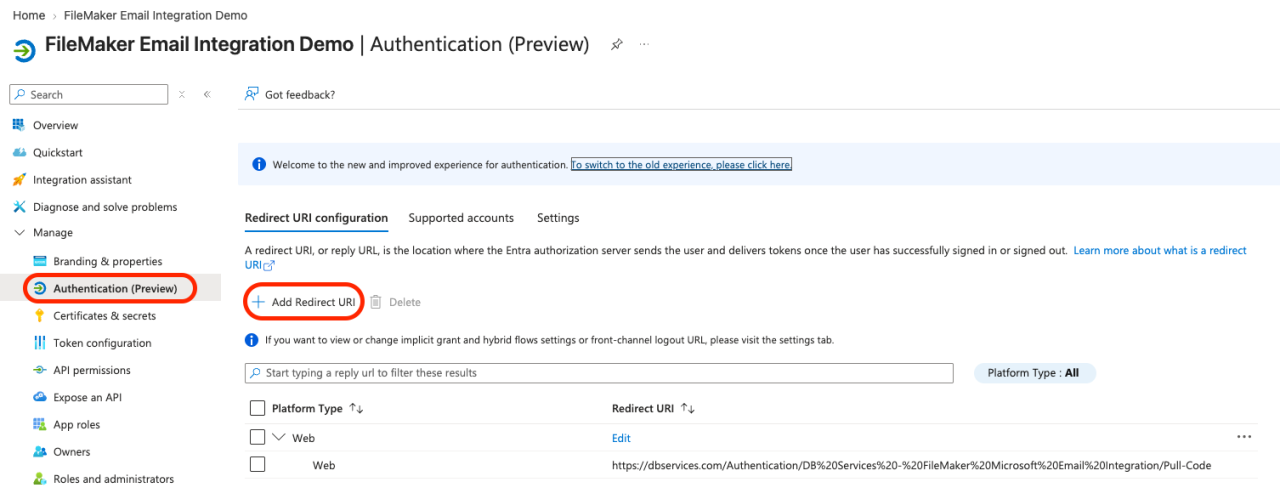
From the Overview page, copy the Application (client) ID and the Directory (tenant) ID.
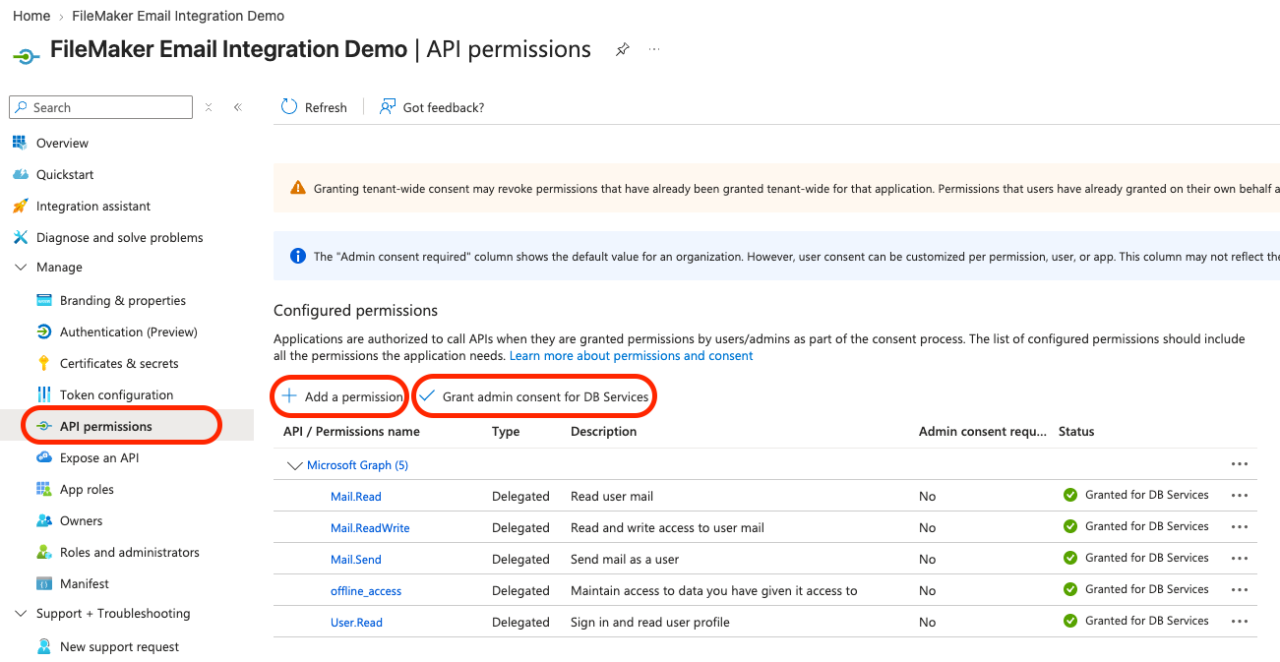
Under API permissions, add the Microsoft Graph delegated permissions: offline_access and User.Read, Mail.Read, Mail.ReadWrite, and Mail.Send. Then, grant admin consent.
Under Certificates & secrets, create a client secret and immediately copy its value. Azure only shows it once.
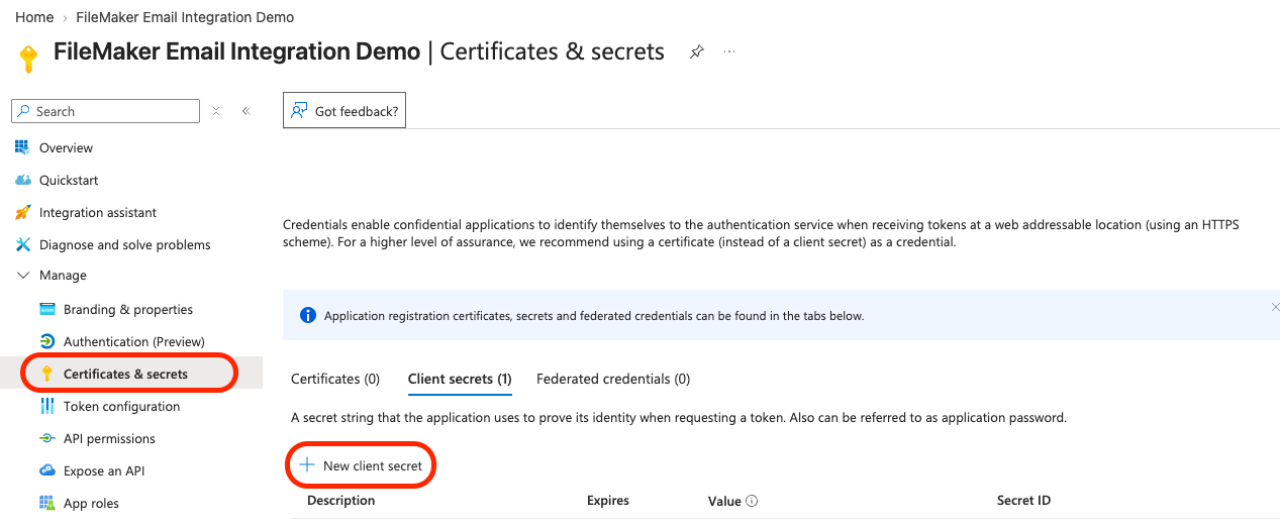
The example file walks through these same steps on its Setup screen.
Authenticating a User
Once everything is set up in Microsoft Azure, you will need to authenticate an email user in your FileMaker solution. The sample file at the end of this article has an example setup.
In FileMaker, construct a URL for the Microsoft login endpoint. This URL includes the application's tenant ID, client ID, redirect URI, and the same delegated permissions mentioned in the application setup.
The user signs in to approve the delegated permissions. Microsoft then returns an authorization code to the redirect URI. Using this authorization code, FileMaker can construct a POST request to retrieve the user's access and refresh tokens. Access tokens expire after about an hour, so when a call returns a 401, request a token refresh and retry the request. With these tokens stored in your FileMaker solution, the user is ready to use the email client.
For a deeper look at how each step works, see Microsoft’s guide to the OAuth 2.0 authorization code flow.
Retrieving Emails
With a fully authenticated email user, it is time to move on to retrieving emails. For this process, store a last-sync timestamp on each user record. Without one, every pull request reverts the entire inbox again. For the first run, use a fallback. The example file starts 90 days back.
Build the endpoint from that timestamp in UTC ISO 8601 format, such as 2026-10-01T00:00:00Z, and URL-encode the filter:
"https://graph.microsoft.com/v1.0/me/mailFolders/Inbox/messages?$filter=" &
GetAsURLEncoded ( "receivedDateTime gt " & $lastSyncTStamp ) &
"&$orderby=receivedDateTime%20asc"
Call it with Insert from URL using these cURL options:
"-X GET" & ¶ &
"--header \"Authorization: Bearer " & $accessToken & "\"" & ¶ &
"--header \"Accept: application/json\"" & ¶ &
"--dump-header $dumpHeaders"
Graph returns 10 messages per page by default. When more messages remain, the response includes @odata.nextLink, a complete URL for the next page that already carries your filter and sort. That means one loop can handle the first page and all subsequent pages.
Messages arrive in the value array. Loop through value[0], value[1], and so on until an index comes back empty. Here is an example page:
HTTP/1.1 200 OK
Content-type: application/json

{
    "@odata.context": "https://graph.microsoft.com/v1.0/$metadata#users('bb8775a4-...')/mailFolders('Inbox')/messages",
    "value": [
        {
            "id": "AAMkAGUAAAwTW09AAA=",
            "conversationId": "AAQkAGUAAAwTW09AAQ=",
            "receivedDateTime": "2026-10-14T15:02:11Z",
            "sentDateTime": "2026-10-14T15:02:05Z",
            "hasAttachments": true,
            "subject": "Q4 order forecast",
            "body": {
                "contentType": "html",
                "content": "<html><body><p>Forecast attached.</p></body></html>"
            },
            "sender": {
                "emailAddress": {
                    "name": "Pat Rivera",
                    "address": "pat@contoso.com"
                }
            },
            "toRecipients": [
                {
                    "emailAddress": {
                        "name": "Sales Ops",
                        "address": "salesops@contoso.com"
                    }
                },
                {
                    "emailAddress": {
                        "name": "Jordan Lee",
                        "address": "jordan@contoso.com"
                    }
                }
            ],
            "ccRecipients": [],
            "bccRecipients": []
        }
    ],
    "@odata.nextLink": "https://graph.microsoft.com/v1.0/me/mailFolders/Inbox/messages?$filter=receivedDateTime+gt+2026-10-01T00:00:00Z&$orderby=receivedDateTime+asc&$skip=10"
}
Matching Emails to Records
Store each message's id and conversationId. These keys can be quite long, which makes them unusable for constructing FileMaker relationships. To work around this, you can hash the key with MD5. There is an example of this using a custom "md5Hash" function in the example file.
Subject, body, and dates read directly with the FileMaker-native JSONGetElement. Recipients sit in three arrays, toRecipients, ccRecipients, and bccRecipients. Loop through each one and append the addresses and names, if needed, to a list.
Attachments
Attachments are quite a bit more complex and take a separate request for each message:
https://graph.microsoft.com/v1.0/me/messages/{message id}/attachments
The response lists each attachment's ID, name, type, and file content as base64 contentBytes, which you can decode into a container with Base64Decode. The inbound mail script in the example file shows the full process, including saving to a separate attachments table.
Moving to the Next Page
After the last message on a page, read the next link:
JSONGetElement ( $insert ; "['@odata.nextLink']" )
If it's empty, every page has been processed. Exit the loop and update the last-sync timestamp. In this example, we use the "receivedDateTime" from the most recently processed message.
Sending Emails
Perhaps even more useful than seeing emails is the ability to compose, reply to, and forward emails using API calls from within your FileMaker solution. Sending emails breaks down into 3 steps, each with its own URL call: creating the draft, sending it, and reading it back.
Build the Message
Start with a JSON message. Recipients use the same array shape as the inbound payload, and each attachment's container is base64-encoded into contentBytes. Here is an example of what Microsoft Graph expects:
{
    "subject": "Q4 order forecast",
    "body": {
        "contentType": "HTML",
        "content": "<p>Forecast attached.</p>"
    },
    "toRecipients": [
        {
            "emailAddress": {
                "address": "salesops@contoso.com"
            }
        },
        {
            "emailAddress": {
                "address": "jordan@contoso.com"
            }
        }
    ],
    "ccRecipients": [],
    "bccRecipients": [],
    "attachments": [
        {
            "@odata.type": "#microsoft.graph.fileAttachment",
            "name": "forecast.pdf",
            "contentBytes": "JVBERi0xLjQKJ..."
        }
    ]
}
Create the Draft
POST the message to:
https://graph.microsoft.com/v1.0/me/messages
For a reply or forward, POST to /me/messages/{message id}/createReply or /createForward instead, with the message wrapped in a message object. Use these cURL options:
"-X POST" & ¶ &
"--header \"Authorization: Bearer " & $accessToken & "\"" & ¶ &
"--header \"Accept: application/json\"" & ¶ &
"--header \"Content-Type: application/json\"" & ¶ &
"--header \"Prefer: IdType=\\\"ImmutableId\\\"\"" & ¶ &
"--data @$payload" & ¶ &
"--dump-header $dumpHeaders"
Microsoft Graph should return an immutable message ID and a conversation ID, but note that this call does not actually send the draft.
Send the Draft
POST to the draft's send endpoint. No request body is needed:
https://graph.microsoft.com/v1.0/me/messages/{message id}/send
A 202 Accepted response means Graph has queued the message for delivery. The response has no body, so the draft step comes first: it's the only way to get the message's ID.
Read It Back
The final step is to GET the sent message:
https://graph.microsoft.com/v1.0/me/messages/{message id}?$select=id,conversationId,internetMessageId,sentDateTime,parentFolderId
Save these details to the email record in FileMaker, similar to the initial email pull. This data is important for threading many emails together.
Conclusion
With authentication, retrieval, and sending in place, your FileMaker solution has a working Microsoft Graph email foundation. From here, you can link messages to client records, thread full conversations, trigger automated sends, or build a custom inbox around your team’s process, all without leaving FileMaker.
Microsoft Graph is one of many services FileMaker can connect to. Explore our FileMaker integrations to see what else your solution can do, or contact us, and we’ll help you build it.
Did you know we are an authorized reseller for Claris FileMaker Licensing?
Contact us to discuss upgrading your Claris FileMaker software.
Download the Microsoft Graph Email Integration File
Please complete the form below to download your FREE FileMaker file.